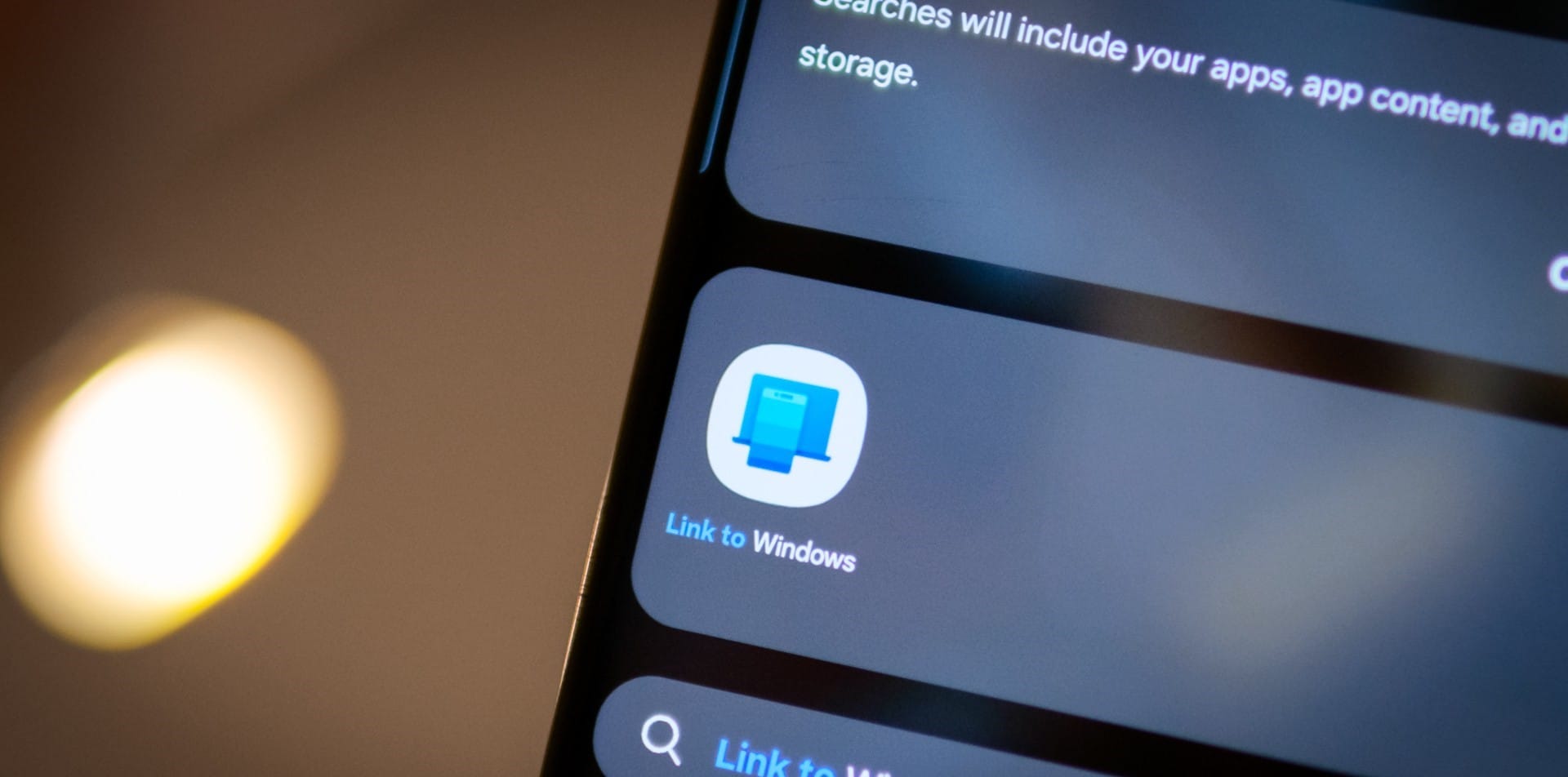
The Link to Windows app is a fantastic way to keep your smartphone and PC in sync, letting you check notifications, send texts, and access your photos directly from your computer. But what happens when things don’t go as planned? Don’t worry—troubleshooting this app is easier than you might think. Here’s a friendly guide to help you get back on track.
1. Check Your Connections
Let’s Make Sure Everything’s Connected
First, ensure that both your phone and PC are on the same Wi-Fi network. This connection is crucial for the app to sync data smoothly. If you’re using Bluetooth, make sure it’s turned on and your devices are paired.
- Wi-Fi: Double-check that your phone and PC are on the same network. You can find this information in your phone’s Wi-Fi settings and on your PC under Settings > Network & Internet.
- Bluetooth: Ensure Bluetooth is enabled on both devices and that they’re paired. Check this in your phone’s Bluetooth settings and on your PC under Settings > Devices > Bluetooth & other devices.
Tip: Sometimes, just reconnecting to your Wi-Fi or Bluetooth can solve the problem.
2. Update the App
Keep Your Apps Fresh
Running outdated software can cause hiccups. Make sure you’re using the latest version of the Link to Windows app on both your phone and PC.
- On Android: Open the Google Play Store, search for Link to Windows, and hit Update if there’s a new version.
- On iOS: Head to the App Store, find Link to Windows, and tap Update.
How to Update: On Android, do this through the Play Store. On iOS, use the App Store.
3. Restart Your Devices
A Quick Restart Can Do Wonders
Sometimes, the simplest solution is the best. Restarting your devices can help clear up any temporary glitches and refresh your connections.
- Restart Your Phone: Press and hold the power button, then select Restart.
- Restart Your PC: Click on the Start menu, choose Power, and then Restart.
Tip: Restart both devices to tackle issues that might not be fixed by restarting just one.
4. Check App Permissions
Make Sure the App Can Access What It Needs
The Link to Windows app requires certain permissions to function correctly. Ensure these permissions are granted on both your phone and PC.
- On Android: Go to Settings > Apps > Link to Windows and verify that permissions like notifications and storage are enabled.
- On iOS: Go to Settings > Link to Windows and check that the necessary permissions are allowed.
How to Check Permissions: On Android, manage app permissions in Apps settings. On iOS, check under Settings.
5. Look for App Conflicts
Other Apps Might Be Getting in the Way
Sometimes, other apps or settings can interfere with the Link to Windows app.
- Close Other Apps: Ensure no other apps are using similar features or causing conflicts.
- Disable VPN: If you’re using a VPN, try turning it off temporarily to see if it’s causing connection issues.
Tip: Closing apps that might be accessing the same features or disabling a VPN can help clear up issues.
6. Reinstall the App
Starting Fresh Can Help
If all else fails, reinstalling the app can often resolve persistent issues.
- On Android: Go to Settings > Apps > Link to Windows, tap Uninstall, then reinstall from the Google Play Store.
- On iOS: Uninstall the app by holding its icon and selecting Remove App, then reinstall from the App Store.
How to Reinstall: Uninstall the app and download it again from the respective app store.
7. Check for System Updates
Keep Your Systems Updated
Make sure both your smartphone and PC are running the latest system updates. This can prevent many compatibility issues.
- On Android: Go to Settings > System > Software Update.
- On iOS: Go to Settings > General > Software Update.
Tip: Regular updates can prevent a lot of tech headaches.
8. Seek Additional Help
Need More Assistance?
If you’ve tried everything and things still aren’t working, there are more resources available.
- Microsoft Support: Visit the Microsoft Support website for detailed guidance.
- Community Forums: Check out forums where other users might have found solutions to similar problems.
Wrapping It Up
Troubleshooting the Link to Windows app doesn’t have to be stressful. With these simple steps, you should be able to sort out most issues. From checking connections and updating apps to restarting devices and verifying permissions, these tips cover what you need.
Still have questions or need more help? Drop us a comment or explore our other blog posts for more tech tips and tricks. Happy troubleshooting!