How to Connect Two Devices on the Same Wi-Fi Network
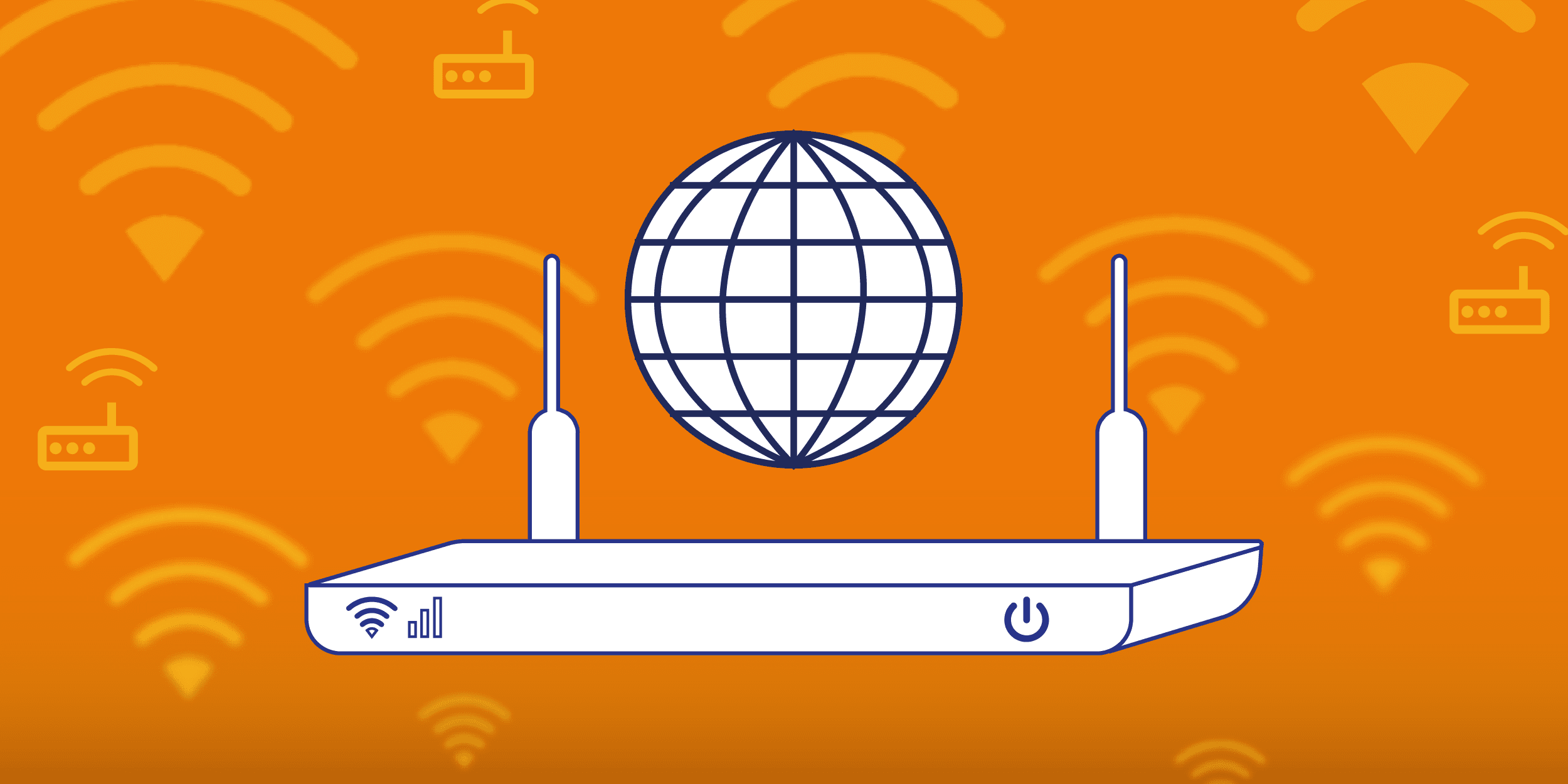
In our tech-savvy world, having multiple devices connected to the same Wi-Fi network is almost a given. Whether you’re looking to share files between your laptop and smartphone, stream your favorite show from your tablet to your smart TV, or simply keep everything online and in sync, getting your devices talking to each other over the same Wi-Fi network can make life a lot easier. Here’s a straightforward guide to help you connect your devices without a hitch.
1. Check Your Network Connection
First things first: make sure both devices are on the same Wi-Fi network. Here’s how to check:
On Windows PCs:
Click the Wi-Fi icon in your taskbar.
Select the network you want to connect to and hit “Connect.”
Enter your password if asked and you’re good to go.
On macOS:
Click the Wi-Fi icon in the menu bar.
Choose your network from the list.
Enter the password if prompted and click “Join.”
On Smartphones/Tablets (iOS/Android):
Go to your Wi-Fi settings.
Tap on your network and enter the password if needed.
Make sure your device shows it’s connected.
2. Confirm Network Match
Now that both devices are connected, make sure they’re actually on the same network. Sometimes, similar network names (like “HomeNetwork” and “HomeNetwork-5GHz”) can be confusing.
On Windows PCs: Open the Command Prompt and type ipconfig. Check the IP address to ensure it matches the range of your other device.
On macOS: Go to System Preferences > Network, select Wi-Fi, and click “Advanced.” Verify the IP address.
On Smartphones/Tablets: Check the connected network details in Wi-Fi settings to confirm the IP address is in the same range.
3. Set Up File Sharing (For Computers)
If you’re planning to share files, you’ll need to enable file sharing:
On Windows PCs:
Go to Control Panel > Network and Sharing Center > Change advanced sharing settings.
Turn on network discovery and file sharing.
On macOS:
Go to System Preferences > Sharing.
Check “File Sharing” and choose the folders you want to share.
4. Connect Devices for What You Need
Depending on what you want to do, connecting your devices can vary:
For File Sharing:
On Windows, use File Explorer to access shared folders.
On macOS, use Finder to browse shared files.
For Streaming Content:
Use apps like Google Home or Apple AirPlay to stream from your smartphone or tablet to a smart TV.
For Device Communication:
Use apps or software designed for communication, like messaging apps or remote control tools.
5. Troubleshooting Tips
If things aren’t working as expected, here’s what you can try:
Restart Devices: Sometimes a quick reboot fixes the problem.
Check Settings: Make sure both devices have compatible network settings.
Update Software: Keep your operating systems and apps up to date for the best performance.
Conclusion
Connecting two devices on the same Wi-Fi network can make your tech life smoother and more enjoyable. By following these steps, you’ll be able to share files, stream content, and keep everything in sync with ease. If you run into any hiccups, just use the troubleshooting tips or check out your device’s manual for more help.
Stay tuned to our blog for more handy tech tips and guides to help you make the most of your devices and keep everything running smoothly!